Local Browser
This article presents the features of the Local Browser.
Features
Exclusive Features
1.1 Tabs
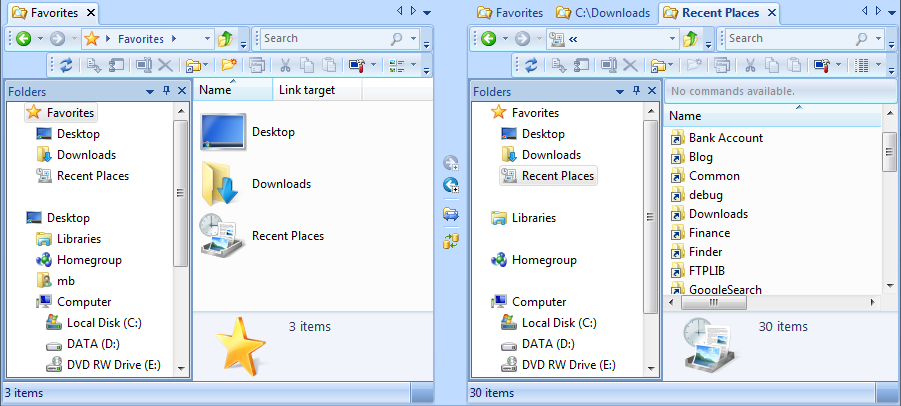
Open multiple tabs, move them around, group them or split them into vertical or horizontal groups.
1.2 Workspaces
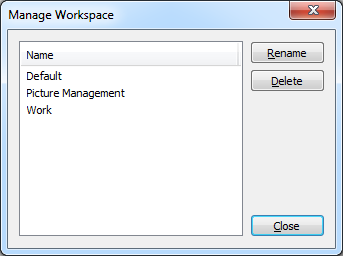
A workspace consists of any number of tabs, their positions in the layout, and their current folder locations. Workspaces can be saved and restored, which makes it easy to quickly switch from one layout to another.
1.3 Visual Compare
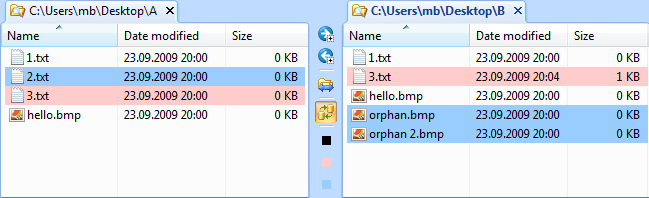
The visual compare feature compares two folders side by side and visually displays the differences. Files or folders that are missing are blue, files that are different are red, and files that are the same are left uncolored. For more details, please see the Visual Compare feature page.
1.4 Filter
To hide some files or folders from the view, the filter toolbar can be enabled. Entering a simple filter like *.txt into the input field will hide all files with the .txt extension from the view. For more complex scenarios, filter groups consisting of multiple filter expressions can be created and saved in the filter manager.

1.5 Bulk Rename
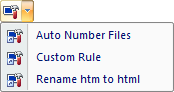
The Bulk Rename tool allows you to easily and quickly rename multiple files based on flexible rename rules. For more details, please see the Bulk Rename feature page.
Standard (Windows Explorer) Features
2.1 Thumbnails and Preview
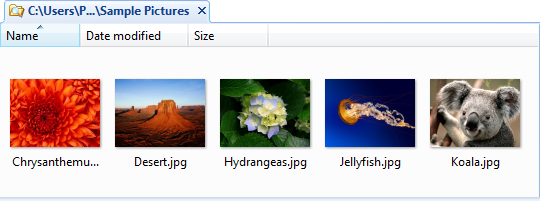
The Preview feature shows the selected image, HTML, or text file in the preview pane. The Thumbnails view is especially useful for photo collections. For details, please see the Thumbnails and Preview feature page.
2.2 Search
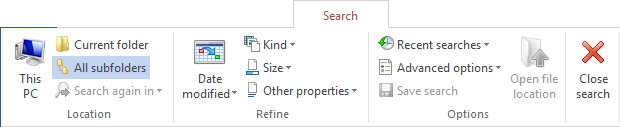
Refine the search by specifying multiple criteria, such as size, last modified date, and other file properties.
2.3 Details Pane
The details pane shown at the bottom of the view is another context-sensitive feature introduced in Windows Vista. Selecting a text file shows only basic properties such as size, date, and time. When an image file is selected, its dimensions and the date taken are displayed. For a music file, the artist, album, title, and other properties exposed by the file are displayed.

2.4 Info Bar
Informational messages are no longer displayed in a dialog that blocks the workflow. Instead, the message is shown in the Info Bar at the top of the view. For example, when searching a folder for files while indexing is disabled for that folder, the Info Bar explains why the search takes longer than usual.

2.5 Header
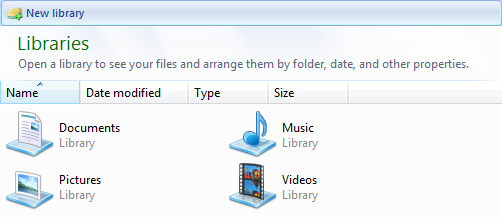
For special folders such as Libraries and Control Panel, a header with additional information is displayed at the top of the view. For an example, please see the screenshot in the Libraries section below.
2.6 Support for Libraries
Windows 7 introduced a new Libraries concept. A library is similar to a folder. It is basically a container which displays the files and folders of other folders. The Libraries folder contains four predefined default Libraries: Documents, Music, Pictures, and Videos. The Libraries folder can be searched and additional folders can be included.