
Transfer files between Google Drive and OneDrive
With SmartFTP, you can transfer files from Google Drive to Microsoft OneDrive or from Microsoft OneDrive to Google Drive with a simple copy operation. The data is transferred from one server to the other through your connection; however, no temporary files are created on your computer during this process.
Setup
- Download and install SmartFTP
- Connect to Google Drive
- menu: File - Connection
- Select Google Drive in the protocol input box
- Click Authorize to continue with the setup
- Connect to OneDrive
- menu: File - Connection
- Select OneDrive in the protocol input box
- Click Authorize to continue with the setup
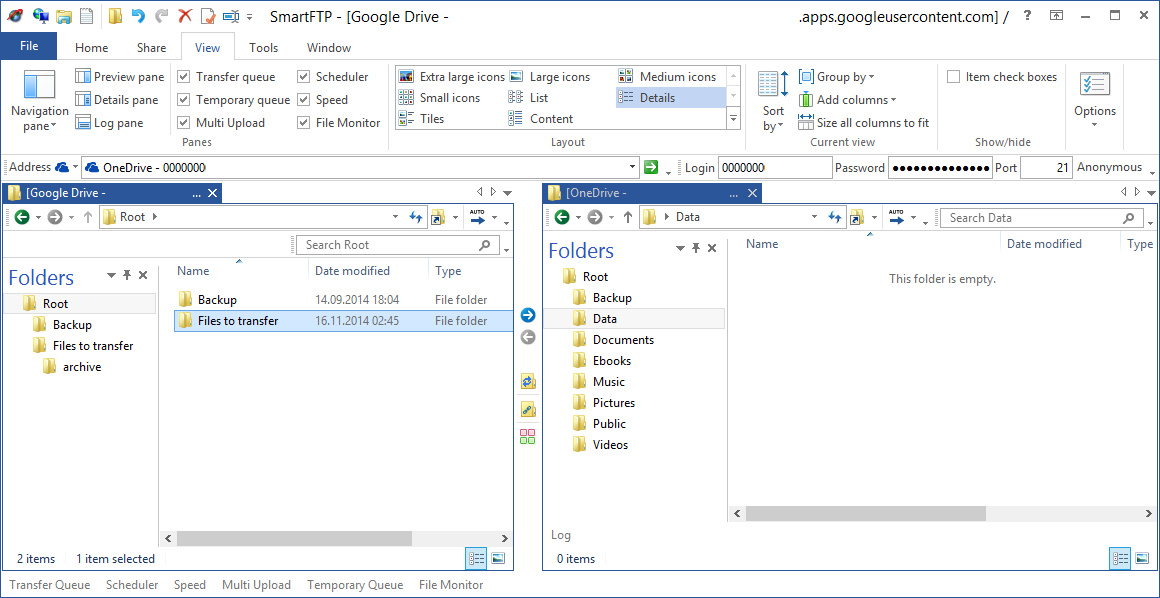
- Once you are connected to both servers, go to the Window menu and select New vertical under the Tab groups. This will arrange both windows side-by-side as in the image below.
- Select the files and folders you want to transfer from one window, and drag and drop the selection into the other window. The files will then be transferred from one server to the other.
File Encryption
Files can also be encrypted when stored on the servers. For more information, see File Encryption.